
Turn Off Find My Before Apple Device Repair | iPhone & MacBook Repair Guide
Learn why Find My must be turned off before repairing your iPhone, iPad, MacBook, or Apple Watch. Understand Activation Lock, Apple repair requirements, and how to disable Find My before service.
IPHONE
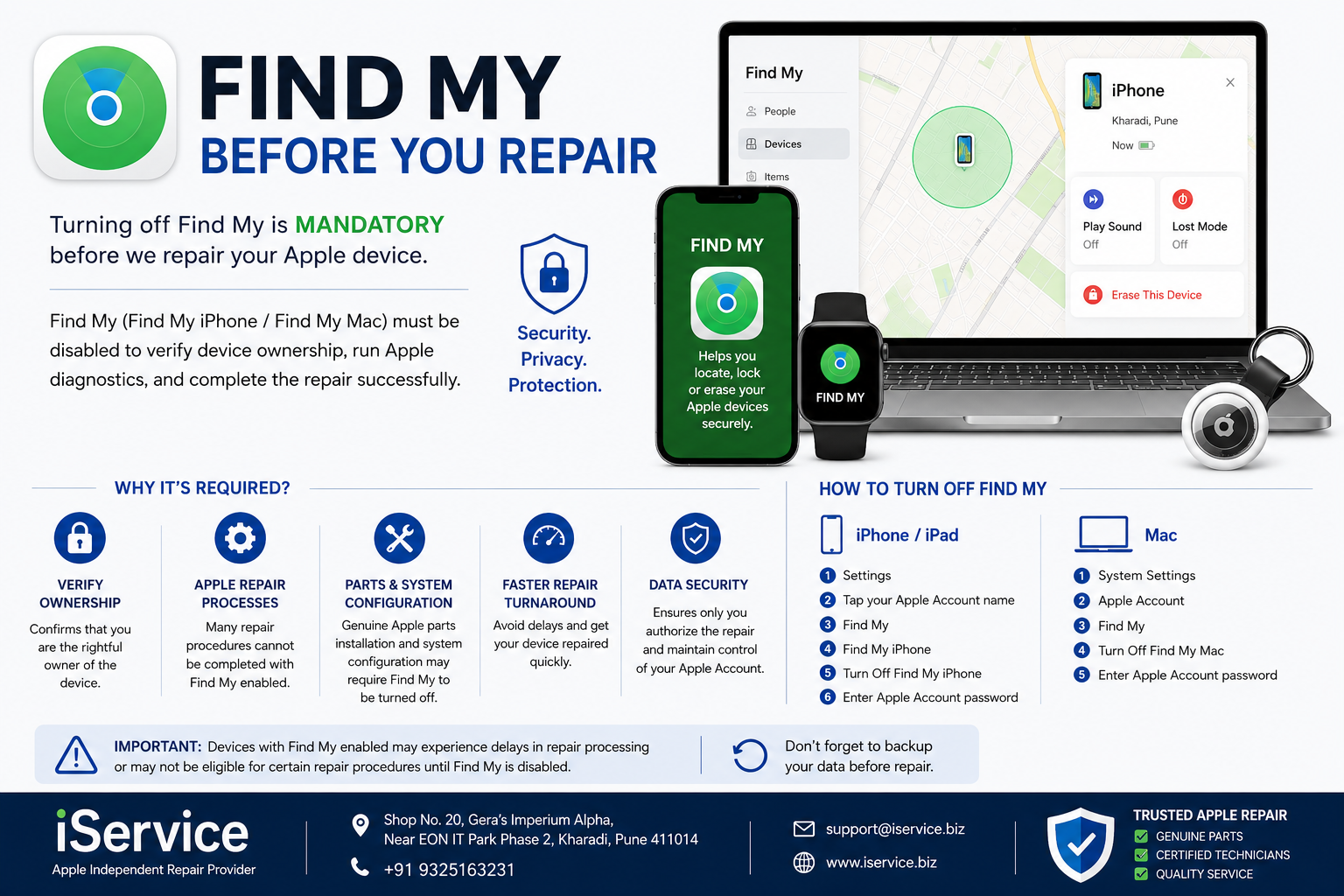
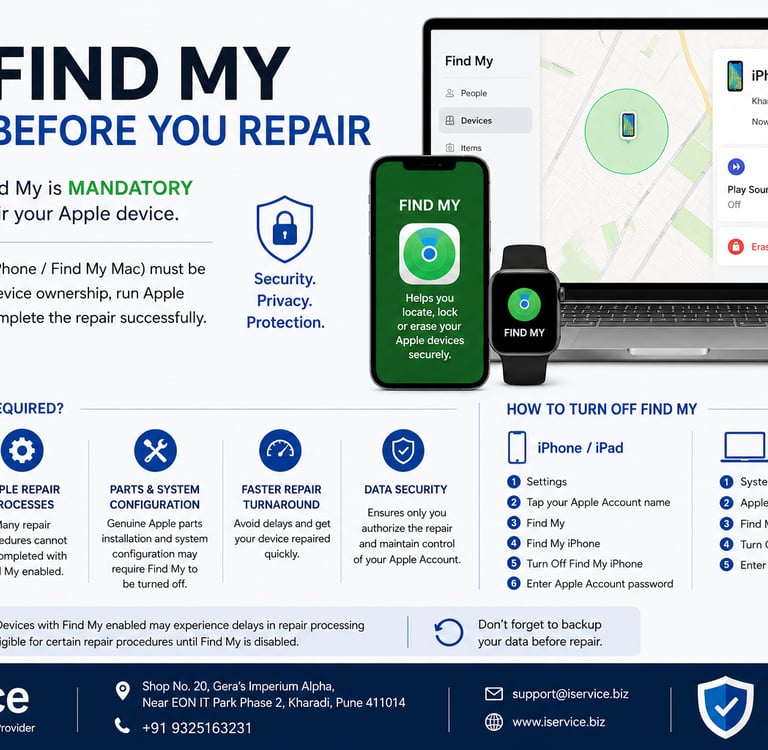
If you're planning to repair your iPhone, iPad, MacBook, Apple Watch, or other Apple device, one of the most important steps before service is turning off Find My. Many customers are unaware of this requirement and are surprised when a repair center requests that they disable Find My before the repair process can begin.
As an Apple Independent Repair Provider (IRP), iService Enterprises follows Apple's repair procedures and security guidelines to ensure every repair is completed safely, securely, and successfully.
What Is Find My?
Find My is Apple's built-in security feature designed to help users locate, lock, and protect their Apple devices if they are lost or stolen. When Find My is enabled, it activates Activation Lock, a powerful anti-theft feature linked to the owner's Apple Account.
Activation Lock prevents anyone else from using, erasing, or reactivating the device without the Apple Account credentials associated with it.
While this feature is excellent for security, it can interfere with certain repair procedures.
Why Must Find My Be Turned Off Before Repair?
1. Verification of Device Ownership
Apple requires service providers to confirm that the person requesting the repair is the legitimate owner of the device.
When a customer disables Find My, it confirms ownership and authorizes the repair process.
This helps prevent unauthorized repairs on lost or stolen devices.
2. Required for Apple Repair Procedures
Many Apple repair processes require communication with Apple's service systems.
Certain repairs cannot be completed while Find My remains active, including:
Display replacements
Battery replacements
Camera repairs
Logic board repairs
Back glass repairs
Face ID repairs
Touch ID-related repairs
MacBook hardware repairs
If Find My is enabled, Apple's repair systems may block service completion.
3. Activation Lock Can Prevent Repair Completion
Activation Lock is automatically enabled when Find My is turned on.
After certain repairs, technicians may need to perform system diagnostics, calibration, configuration, or software validation.
If Activation Lock remains active, these procedures may fail, delaying repair completion.
4. Genuine Apple Parts Configuration
Apple Genuine Parts often require system configuration after installation.
This process ensures:
Genuine part verification
Correct device functionality
Performance optimization
Apple system compatibility
Turning off Find My helps ensure that these configuration processes can be completed successfully.
5. Faster Repair Turnaround Time
One of the most common causes of repair delays is customers forgetting their Apple Account password.
If Find My cannot be disabled, technicians may be unable to proceed with certain repairs until ownership verification is completed.
Disabling Find My before visiting the service center helps avoid unnecessary delays and allows technicians to begin repairs immediately.
How to Turn Off Find My on iPhone or iPad
Open Settings.
Tap your Apple Account name at the top.
Select Find My.
Tap Find My iPhone.
Turn off Find My iPhone.
Enter your Apple Account password.
Confirm the change.
How to Turn Off Find My on Mac
Open System Settings.
Click your Apple Account.
Select Find My.
Turn off Find My Mac.
Enter your Apple Account password.
Confirm.
What If I Forgot My Apple Account Password?
If you do not remember your Apple Account password, you must recover access to your account before Find My can be disabled.
Apple provides account recovery options through its official Apple Account recovery process.
Unfortunately, repair centers cannot remove Activation Lock or bypass Find My on behalf of customers.
Can a Repair Center Turn Off Find My for Me?
No.
For privacy and security reasons, only the device owner can disable Find My using their Apple Account credentials.
Apple service providers, including Apple Authorized Service Providers and Independent Repair Providers, cannot disable Find My without the customer's authorization.
Before Visiting for Repair
To ensure a smooth repair experience, we recommend:
✓ Back up your data
✓ Turn off Find My
✓ Know your Apple Account password
✓ Remove any screen lock passcode if requested
✓ Bring proof of purchase if available
✓ Keep your device sufficiently charged
iService Enterprises Apple Repair Support
At iService Enterprises, we provide professional Apple device repairs using genuine Apple parts, Apple diagnostics, tools, and repair procedures.
Our Apple-certified technicians repair:
iPhone
MacBook
iMac
iPad
Apple Watch
AirPods
We recommend disabling Find My before arriving for service to help us complete your repair as quickly as possible.
Contact iService Enterprises
Shop No. 20, Gera's Imperium Alpha, Near EON IT Park Phase 2, Kharadi, Pune – 411014
Phone: +91 9325163231
Email: support@iservice.biz
Website: www.iservice.biz
Final Thoughts
Find My is one of Apple's most important security features, but it is also a critical requirement during the repair process. Disabling Find My before service helps verify ownership, prevents repair delays, allows Apple diagnostics to run correctly, and ensures your device can be repaired according to Apple's standards.
Before bringing your Apple device in for repair, take a few minutes to turn off Find My and enjoy a faster, smoother repair experience.