
Your Comprehensive Guide to Resetting Your Apple ID Password
Understanding the Importance of Your Apple ID Password
Your Apple ID is the key to accessing various Apple services, including iCloud, the App Store, Apple Music, FaceTime, iMessage, and Find My. Resetting your Apple ID password is crucial if you suspect unauthorized access, forget your password, or encounter security alerts. This guide will help you navigate the different methods available for resetting your Apple ID password while ensuring your data remains secure.
Common Reasons for Resetting Your Apple ID Password
There are several scenarios where you might find it necessary to reset your Apple ID password:
- You have forgotten your password.
- You have entered the wrong password too many times, leading to account lockout.
- Your Apple ID has been locked for security reasons.
- You received a security alert indicating suspicious activity.
- You purchased a new Apple device and cannot sign in.
- You wish to enhance your account security.
How to Reset Your Apple ID Password
There are numerous methods to reset your Apple ID password. Here are three effective ways:
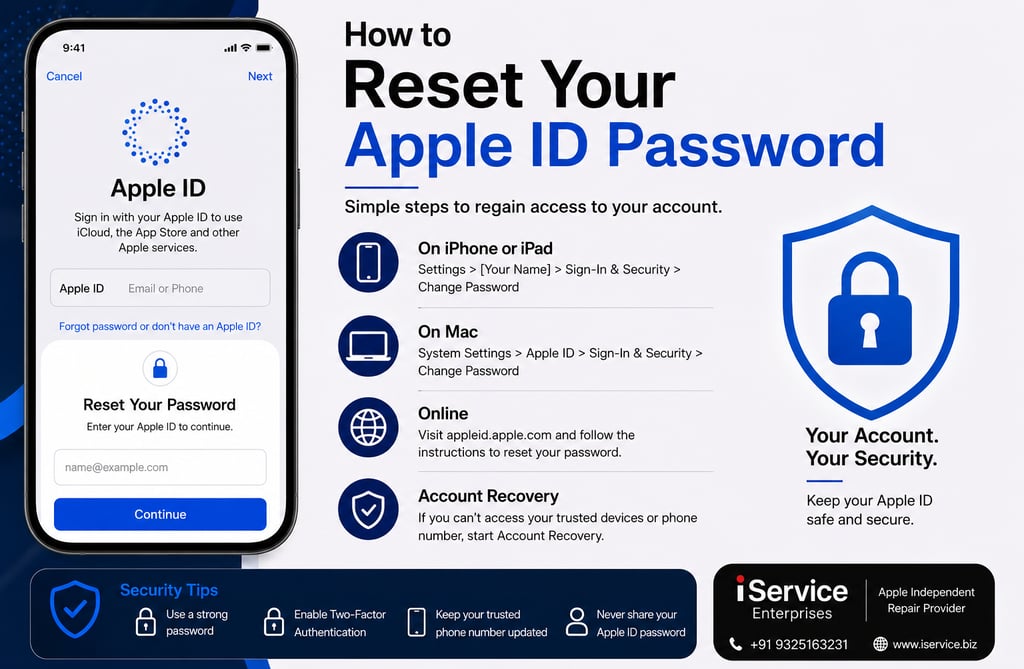
Method 1: Resetting Password on iPhone or iPad
If you are currently signed in to your Apple ID on your device, follow these steps:
- Open the Settings app.
- Tap your name at the top.
- Select Sign-In & Security.
- Tap Change Password.
- Enter your device passcode.
- Set a new, strong password and confirm it.
Method 2: Resetting Password on a Mac
If signed in on your Mac, take these steps:
- Open System Settings (or System Preferences on older versions).
- Click on your Apple ID.
- Select Sign-In & Security.
- Click Change Password.
- Enter your Mac login password when prompted.
- Create and confirm your new Apple ID password.
Method 3: Resetting Password Online
If you cannot access your devices, you can reset your password online:
- Visit Apple's account recovery website.
- Enter your Apple ID (email address).
- Complete the identity verification steps.
- Follow the on-screen instructions to set a new password.
Depending on your security settings, Apple may verify your identity using your trusted device or phone number, as well as through two-factor authentication and account recovery processes.
Creating a Strong Password
When setting a new password, ensure it meets the following criteria:
- At least 8 characters long.
- Combines uppercase and lowercase letters.
- Includes numbers and special characters.
- Is unique to your Apple ID and not used on other sites.
Additionally, avoid easily guessable information, such as your birthday or simple words.
Conclusion: Keeping Your Apple ID Secure
To further enhance the security of your account, remember to enable two-factor authentication, regularly review devices logged into your Apple ID, and remain cautious of phishing emails. By adopting these best practices and understanding the reset process, you can keep your Apple ID secure and enjoy seamless access to Apple services.